R: the bare essentials
What you need to know before logging in to DST
You do not need to learn R from scratch. This phase gives you the minimum you need in order not to feel lost when you meet the extraction code later in the guide. Data structures and commands for exploratory analysis come in Phases 7 and 11 - they make no sense until you have data to look at.
Download R and RStudio
Both are already installed on the DST server, so you do not have to do anything here. If you want to practise locally first, install R and then RStudio Desktop, both free. If you want to learn R properly alongside this guide, the courses and books are in Learning resources.
RStudio for the first time
RStudio is divided into four panels:
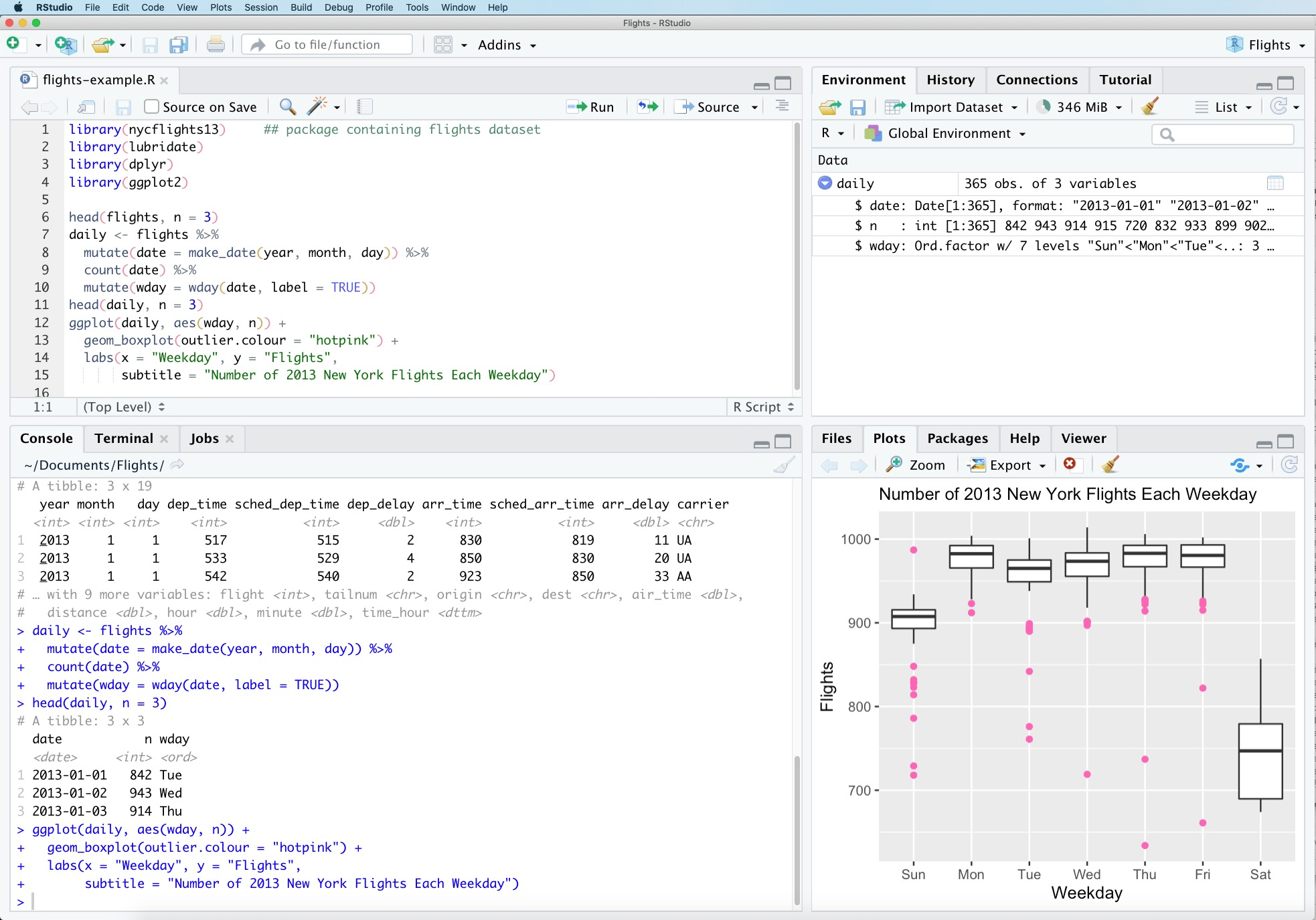
Source: Wikipedia / RStudio, CC BY-SA 4.0
Top left - Script editor
This is where you write and save your code. You can have multiple scripts open at once and switch between them using the tabs at the top of the panel. Remember to save changes regularly - Ctrl+S (Windows) / CMD+S (Mac).
Top right - Environment / History / Connections
- Environment: shows all objects you have created in the current R session - data frames, vectors, lists. Functions from packages (e.g.
filter()from dplyr) are not shown here; only what you have created yourself. It also shows how much memory each object takes, which matters on a shared server - see Seeing your memory use from inside R. - History: a log of all commands you have run in the console.
Bottom left - Console
Code is executed here and output and error messages are shown here. You can type commands directly in the console - but they are not saved. All work you want to keep must be in a script.
Bottom right - Files / Plots / Packages / Help
- Files: a file browser for your folders and files on the server.
- Plots: graphs you create are shown here - even before they are saved.
- Packages: list of all installed packages. A tick next to a package means it is loaded with
library()and ready to use. - Help: help documentation, with description, arguments and examples for a function. Two ways in: type
?functionnamein the console (e.g.?filter), or place the cursor inside a function name in your script and press F1.
If a panel disappears: go to View → Panes → Show All Panes in the menu bar at the top. You can also click the icon with four squares in the menu bar.
Run code: place the cursor on a line and press Ctrl+Enter.
Open a script, write one line, run it
File → New File → R Script
Write these three lines and run them one at a time with Ctrl+Enter:
x <- 5 # assign the value 5 to the variable x
x # type the variable name to see the contents
x * 2 # use the variable in a calculation
You have now written, run and used your first line of R code.
What is an object?
x <- 5 creates an object. The arrow <- means “store what is on the right under the name on the left”. From now on x stands for the value 5 - until you overwrite it yourself. The pattern is always the same:
name <- somethingYou name something so you can reuse it later without writing it out again. Almost everything in R is an object: a single number, an entire table, a model. When you fetch a register with collect(), for example, you typically store it in an object so you can keep working with it:
bef_data <- bef %>% collect() # store the fetched table in the object bef_dataThe objects you create appear in the Environment panel in the top right of RStudio.
What is a function? A package? What does library() do?
A function is a command that performs an action. filter(data, age > 50) is a function. sum(c(1, 2, 3)) is a function. You recognise functions by their parentheses.
What is inside the parentheses? The parentheses are always there - but they are not always filled. It depends on whether the function needs input to know what to do:
filter(age > 50)- requires you to specify the condition; otherwise it does not know what to filter onopen_dataset("E:/workdata/...")- requires the path; otherwise it does not know what to opencollect()- requires nothing; it already knows what to fetch, because it is the pipe that has sent data forward to it
Rule of thumb: empty parentheses mean the function acts on what has been passed forward via the pipe, without needing anything extra from you.
A package is a collection of functions written by others that you can load. R comes with base functions, but most of what we use is in packages such as dplyr and arrow.
library() loads a package so its functions are available in your session.
install.packages("dplyr") # install the package once (or after a server reset)
library(dplyr) # load the package at the start of each session
You will see library(dplyr) at the top of almost every script.
6 functions and symbols you’ll meet throughout the guide
You will see these in almost every extraction. You do not need to understand them in detail now - just recognise them.
A symbol you will see everywhere is %>% (the pipe). It passes the result from one line forward as input to the next. df %>% filter(age > 50) means: “take df, and pass it to filter()”. This makes it possible to chain steps together and read code from top to bottom.
| Function | What it does | Example |
|---|---|---|
filter() |
Keep rows that meet a condition | df %>% filter(age > 50) |
select() |
Choose which columns to keep | df %>% select(pnr, age, sex) |
collect() |
Fetch parquet data into R’s memory | register %>% filter(...) %>% collect() |
mutate() |
Create a new column or modify an existing one | df %>% mutate(age_cat = age > 65) |
left_join() |
Link two datasets - keep all rows from the left | cohort %>% left_join(bef, by = "pnr") |
%>% |
The pipe - passes the result to the next function | df %>% filter(age > 50) %>% select(pnr) |
The pipe %>% is explained in detail in Functions: overview, and collect() in Phase 5 - Extracting data step by step.
When you get stuck
Ask a colleague first, then search the error message, and treat AI as a last resort you have to check. The six steps to take when you see a red message, the error-message tables, how to write a question DST’s rules allow, and where to ask are all on Troubleshooting.
Keyboard shortcuts in RStudio
The five you will use on day one:
| Mac | Windows | Action |
|---|---|---|
Option + - |
Alt + - |
Insert the assignment operator <- |
| CMD + SHIFT + M | CTRL + SHIFT + M | Insert pipe (%>% or \|>) |
| CMD + Return | CTRL + Enter | Run line/selection and move to next |
| CMD + S | CTRL + S | Save |
| F1 | F1 | Open help for the function at the cursor |
More shortcuts, once you are writing longer scripts
| Mac | Windows | Action |
|---|---|---|
| Option + Return | Alt + Enter | Run line/selection and stay on same line |
| CMD + SHIFT + R | CTRL + SHIFT + R | Insert section heading in script |
| CMD + Z | CTRL + Z | Undo |
| CMD + SHIFT + Z | CTRL + SHIFT + Z | Redo |
| CMD + A | CTRL + A | Select all |
| CMD + SHIFT + A | CTRL + SHIFT + A | Reformat/re-indent code |
| Option + ←/→ | CTRL + ←/→ | Jump one word at a time |
| Option + SHIFT + ←/→ | CTRL + SHIFT + ←/→ | Select word by word |
Section headings are what build the script outline - see Find your way around a long script.
Pipe shortcut: choose which pipe is inserted. Tools → Global Options → Code → Use native pipe operator controls whether CTRL/CMD+SHIFT+M inserts |> (native, newer R) or %>% (magrittr, the dplyr convention).
Next steps
You now have the concepts you need to understand the code.